The Foundation of Marketo UTM Tracking
What is a UTM Parameter?
A UTM parameter is a small piece of text added to the end of a URL. UTM stands for Urchin Tracking Module, a legacy naming convention from Urchin Software, which Google later acquired.
Think of UTMs like colorful sticky notes attached to your links. They describe exactly where your traffic comes from. When someone clicks a tagged URL, your web analytics platform reads these notes and records the visit details.
Why does this matter? Because UTMs allow Marketo to identify precisely which source, medium, and campaign drove each conversion, if the UTM data is preserved during the whole session (via cookies, localStorage, or automation logic).
The 5 Core Parameters in Marketo
Every marketer should know these five parameters to track. They form the backbone of any UTM strategy for attribution. They form the backbone of any UTM strategy for attribution.
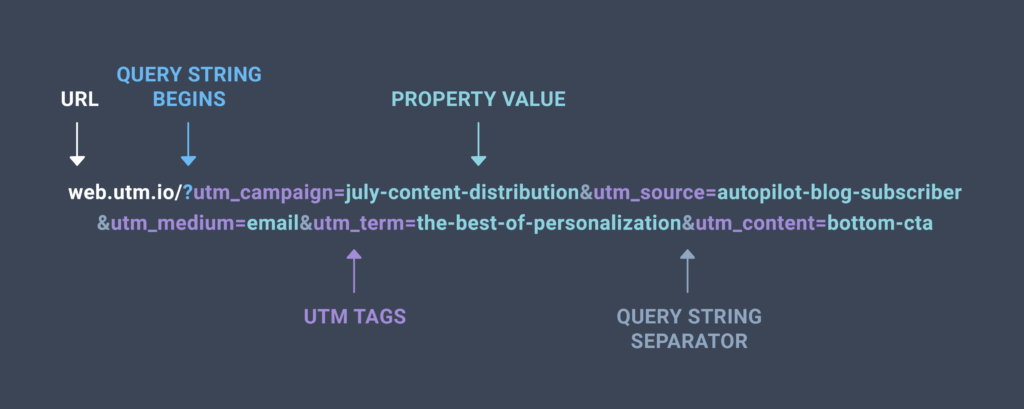
utm_source identifies the traffic origin. Examples include google, newsletter, or twitter.
utm_medium identifies the marketing channel. Your UTM medium values should follow common conventions like cpc, email, or social.
utm_campaign holds the specific name of your ad campaign. Something like summer_sale_2025 works perfectly.
utm_term is used to track keywords in paid search campaigns. You might use running_shoes here.
utm_content differentiates ad variations or link placements. For instance, blue_button tells you which creative performed best.
Ready to start building?
Use UTM.io to ensure parameters are consistent across your entire marketing team
Why You Need Accurate UTM Tracking in Marketo
Maximizing ROI and Resource Allocation
Here’s where things get interesting. UTMs bridge the gap between campaign execution and revenue evaluation. Without them, you’re flying blind. Tracking UTM parameters accurately enables granular measurement of revenue by specific assets and campaigns.
Want to know which blog post drove the most qualified leads? UTMs tell you. Curious whether LinkedIn organic outperforms paid campaigns? The data is right there.
This insight gives you a concrete metric for each channel and helps teams decide where to invest budget based on hard numbers. No more guessing. No more gut feelings. Just data-driven decisions that improve your digital marketing efforts month after month.
Reliability in the Post-Cookie Era
Cookies are crumbling as browser restrictions tighten every year. But UTM values remain bulletproof. They provide a shared language that works across CRMs, CDPs, and BI tools. This reliability makes UTMs essential for any marketer navigating today’s privacy-focused landscape.
3 Ways to Capture UTM Parameters in Marketo
Before diving into methods, here’s a quick comparison:
| Method | Pros | Cons | Persistence? | Automation |
|---|---|---|---|---|
| Native Hidden Fields | Simple setup per form | Manual updates; overwrites data | No | Low |
| Tracking Script | Automated; multi-field support | Requires JavaScript setup | Yes | High |
| Specialized Automation Tools | Captures all traffic (UTM + Organic) | Third-party subscription | Yes | Full Auto |
1. Native Marketo Hidden Form Fields
This is the simplest approach. You add hidden fields to every Marketo form—whether it’s for a webinar signup or gated content download.
The form pulls the parameter directly from the URL when someone submits. Quick to implement. No coding required.
But wait. There’s a catch.
This method only captures data if the user fills out the form on the exact web page containing the UTM parameters. If they navigate to another page first, the parameters vanish. Form submission on a different page means lost data.
2. Implementing a Website Tracking Script
Want better persistence? A JavaScript snippet solves the navigation problem.
The script captures UTM values when visitors land on your site. It stores them in cookies or browser storage. Now the data persists across pages and even sessions.
 A sample website tracking script on a notebook.
The benefits stack up quickly:
- Data survives multiple page views
- You can capture both first touch and current UTMs
- Update the script once instead of editing every form
- Works automatically without manual configuration
This approach requires some technical setup. But the payoff is massive for any serious Marketo instance.
3. Using Specialized Automation Tools
These tools autofill hidden fields with cleaned, standardized data.
They fix common inconsistencies like “google” versus “Google” and categorizes traffic properly. Organic search gets labeled correctly. Paid search gets its own category. Everything stays organized.
Managing UTM Fields Within the Marketo Architecture
Setting Up Temp UTM Fields for Marketo UTM Data
Here’s a pro tip that will save you headaches. Create one “Temp” field for every parameter in your Marketo campaigns.
These fields should be empty 99.9% of the time. They act as a holding bay—a temporary stop where incoming data lands before moving to permanent storage.
Why bother? Because this architecture prevents overwrites and enables sophisticated flow logic. You can populate both original and recent field sets from a single temp capture.
Storing First/Original vs. Most Recent UTMs in Marketo
Attribution gets complicated fast. Did the customer convert because of your first Google Ads click? Or was it that last newsletter that sealed the deal?
You need both answers. So create two field sets:
Most Recent Set captures the latest touchpoint. These utm fields update with every new tagged visit.
First/Original Set stays locked forever. It shows how each lead was originally acquired.
Your flow logic must ensure original fields never get overwritten once they contain data. This setup enables complete attribution reporting across the entire customer journey.
Utilizing Program Member Parameters in Marketo
Marketo allows a limited number of Program Member custom fields. Use them wisely.
Dedicate 5–10 of these specifically to UTM tracking. This lets you retain UTM data at the program level forever. Which UTMs drove that specific webinar signup? The answer lives in your Program Member fields.
This granular tracking transforms how you measure campaign performance.
Standardizing Your Parameters
Consistency kills campaigns. Wait – inconsistency kills campaigns. Let me explain.
When one person uses utm_medium=email and another uses utm_medium=Email, your reports split that data into two separate lines. Your carefully planned analysis falls apart.
Document a “Source of Truth” spreadsheet. Or better yet, use a UTM builder platform to enforce lowercase naming and hyphen usage. Every map of your marketing data depends on this standardization.
UTM Builder website.
Check out this naming conventions guide for detailed recommendations.
Processing UTMs in Marketo Marketing Activities
How to Build a Nulling Flow for UTM Tracking
Your smart campaign flow needs four critical steps:
Step 1: Capture incoming data into Temp fields via form submission or api webhook.
Step 2: Push data to Current and Original field sets using token references. Configure the flow to skip Original fields if they already contain values.
Step 3: Add a Wait step. Usually 2+ seconds works, depending on system lag.
Step 4: Null the Temp fields. Set them back to empty. This prepares your system for the next interaction.
This nulling flow keeps your data clean and your automation running smoothly.
Using Smart Lists and Trigger Campaigns with UTMs
Now the fun begins. Create triggers based on utm values to personalize follow-up sequences.
If utm_medium equals instagram, send a social-specific nurture sequence. If utm_source shows google, trigger content optimized for paid search visitors.
Use smart lists and reports to group leads for management reporting. Build segments like “All Leads from Q3 Paid Search” or “Newsletter Signups from LinkedIn.” These segments power both automation and analysis.
Syncing Marketo UTM Data to Your CRM
Linking Programs to Salesforce Campaigns
Your CRM needs this UTM data too. Here’s how to make it happen with Salesforce.
Ensure Marketo programs are properly synced to Salesforce campaigns. Consistent naming helps, but it’s the Salesforce Campaign Sync configuration and Program Member status mapping that ensure UTM data flows through to each lead and campaign member in the CRM.
This connection closes the loop between marketing activities and revenue. Sales teams see which campaigns drove their best opportunities.
Using Custom Webhooks and Automation for Data Transfer
Sometimes standard sync isn’t enough. Complex scenarios require custom solutions.
Custom SFDC webhooks connect Marketo to the Salesforce public REST API. They push Campaign Member data with complete UTM context.
Third-party middleware like Workato handles edge cases elegantly. When a lead signs up for four webinars in an hour, middleware prevents data overwrites and maintains accuracy.
Workato’s website homepage.
Best Practices for Your Marketing Team
Standardizing Naming Conventions for UTMs
Start with a discovery session. Define your organization’s UTM taxonomy before anyone creates the utm tags for their next campaign.
Follow these UTM best practices religiously:
- Always use lowercase
- Choose either underscores or hyphens—and stick with it
- Never use UTMs on internal links
That last point deserves emphasis. Adding utm parameters to internal navigation triggers self-referrals. Your beautiful data becomes polluted garbage.
Auditing Your Tracking Script and Links
Set up marketo audits on a regular schedule. Test links across different devices to verify parameters pass correctly. Mobile browsers sometimes behave differently than desktop.
Perform monthly checks of your Temp fields. If they contain data, your nulling flows aren’t working. Fix them immediately.
Pro tip: Never include Personally Identifiable Information in UTM tags. No names. No emails. Keep it clean.
Avoiding Common UTM Pitfalls when Adding UTMs
Three mistakes kill more campaigns than anything else:
Inconsistency happens when someone uses social-media while their colleague uses social. Specify your terms in advance.
Over-tagging means adding UTMs where they aren’t needed. Internal navigation doesn’t require tracking keywords.
No persistence occurs when you forget scripts or cookies. Users browse your site, and data evaporates.
Links to internal pages of a website that do not require tracking keywords.
Advanced Analytics and Reporting with UTMs in Marketo
Visualizing Revenue by Keyword and Channel
Export your Marketo UTM data to visualization tools. Power BI, Tableau, or Google Data Studio all work beautifully.
Build these key reports to impress stakeholders:
- Leads by Facebook Network
- Customers by Google Campaign
- Total Revenue by Keyword using utm_term data
Marketo Measure enhances this further by connecting marketing touches directly to revenue. Combined with solid UTM implementation, you gain complete visibility into what drives results.
Final Thoughts
Mastering UTM tracking in Marketo separates guessing from knowing. Implement structured utm fields, leverage automation tools, and enforce team-wide naming standards.
These steps transform Marketo into a high-fidelity attribution machine that proves the value of every digital marketing dollar spent.
Take Your Marketo UTM Parameters to the Next Level
Frequently Asked Questions
What are UTM parameters in Marketo?
UTM parameters are text tags added to URLs that identify traffic sources, mediums, and campaigns within Marketo.
How do I implement UTM tracking in Marketo?
Add hidden fields to forms, deploy a tracking script on your website, or use automation tools like Attributer.
Why aren’t my UTM parameters showing in Marketo?
Check that your hidden fields match parameter names exactly and verify your tracking script stores data in browser cookies.
Can I track both first touch and last touch UTMs?
Yes. Create separate field sets for Original and Most Recent values with flow logic preventing Original field overwrites.
How do I sync UTM data to Salesforce?
Match Marketo program names to Salesforce campaign names and sync Program Member status to Campaign Members.
What’s the difference between utm_source and utm_medium?
utm_source identifies the specific origin like google or facebook while utm_medium describes the channel type like cpc or email
